
Dozens of items and products in your restaurant or store… managing and updating each one takes time and effort!
But things get simpler when you rely on efficient item management through a modern and flexible system like Blend, which offers advanced tools to give you full control over your product list in minutes — whether you run a small restaurant or a chain of major retail branches:
✅ Easily update prices
✅ Instantly modify availability status
✅ Categorize products into multiple groups
✅ Control all items from a single dashboard
All of this leads to fewer errors, faster sales operations, improved customer experience, and most importantly, easier and simpler management of your business.
Keep reading this article to learn how to use Blend’s item management tools, and why it’s the ideal choice for anyone seeking professional and smart inventory management.
What does efficient item management mean for restaurants and stores?
Efficient item management means organizing and tracking the available products and materials in restaurants and stores in a way that ensures easy access, constant availability, reduced waste, and a balance between supply and demand.
It’s a core component of any restaurant or store’s success, as it improves customer experience, simplifies sales and purchasing processes, and reduces losses from stockouts or overstocking. With modern technology, item management has become easier and more accurate thanks to advanced systems and software.
One of the leading solutions is Blend's order management system, which provides restaurant and store owners with powerful tools for full item control — such as modifying availability status (available/unavailable), easily updating prices, and organizing products into clear categories or groups, all contributing to more professional operations.
Blend’s Efficient Item Management Tools for Stores and Restaurants
Blend’s delivery order management system offers an integrated suite of smart tools that enable restaurants and stores to manage items efficiently and flexibly. With the item editing feature, you can update the product’s name, price, or its categories — individually or in bulk.
It also allows grouping items under multiple categories to organize products in a way that makes them easier for staff and customers to access. For example, you can classify a single item under both 'Cold Drinks' and 'Healthy Drinks' simultaneously.
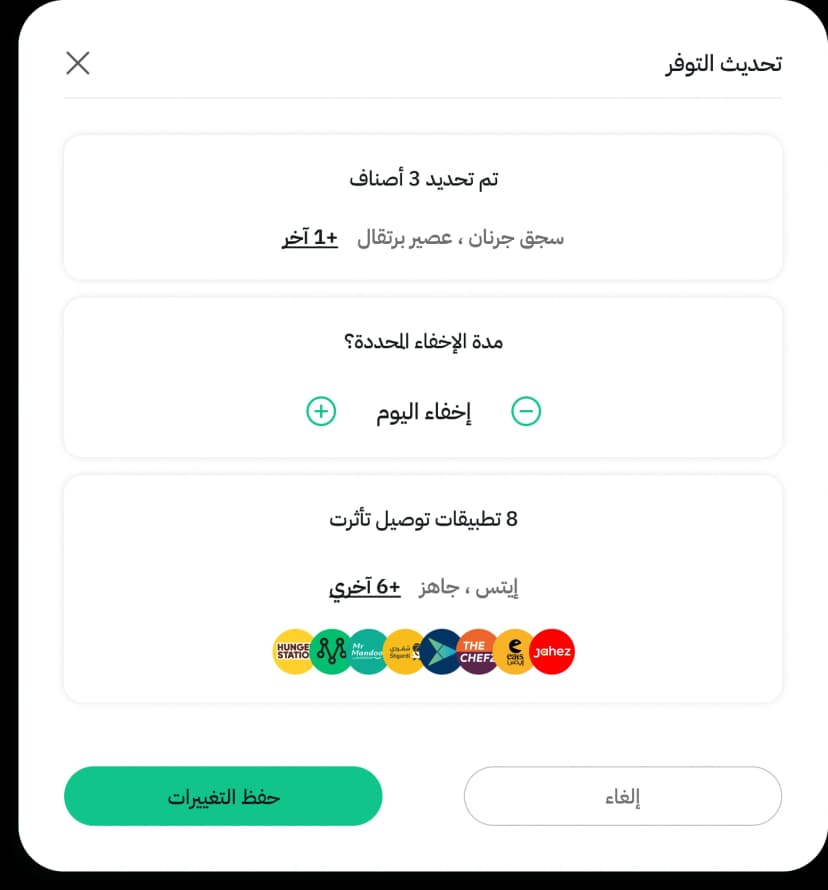
The availability status feature (Available / Unavailable) lets you temporarily hide out-of-stock items, specify a time for reactivation, and have them automatically reappear. These updates are reflected immediately across all linked delivery platforms — saving you time and effort.
Combined, these tools make Blend a powerful platform for simplifying product management, improving customer experience, and boosting efficiency in restaurants and stores alike.
Below, we’ll walk you through each of Blend’s item and product management tools in detail:
Easily and Quickly Edit Items
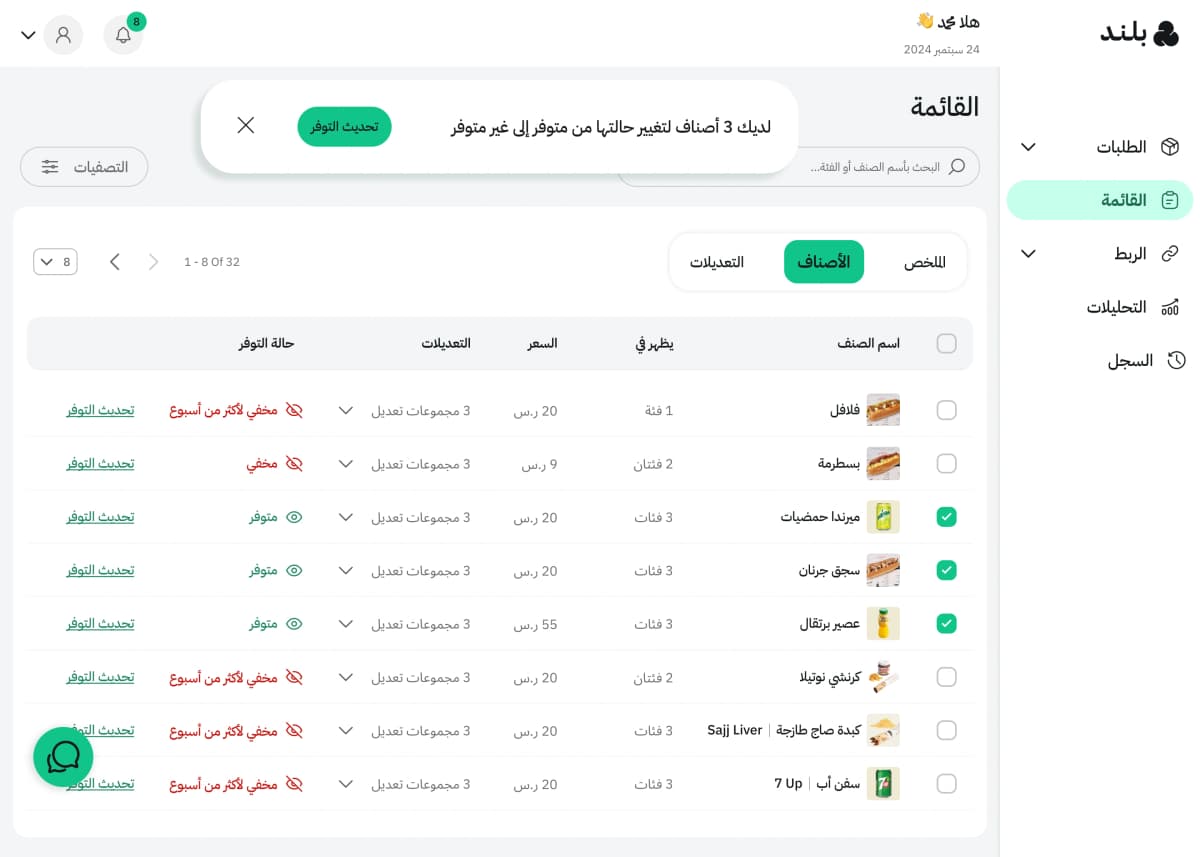
Blend’s 'Edit Items' feature gives restaurants and stores the ability to update product details with ease and flexibility. You can change the item name, price, and its categories quickly and without hassle.
You can edit each item individually to meet specific needs or apply changes to a group of items at once — saving time and effort, especially during routine price updates or reclassification.
You can complete any of these actions in less than 3 minutes using Blend, following these steps:
- Log into your store or restaurant’s order management dashboard.
- From the sidebar, select 'Menu'.
- A list of your available items will appear.
- Select the item or dish you want to edit and make the desired changes.
Group Items into Specific Categories
The item grouping feature in Blend helps restaurants and stores organize products in a clear and searchable way by assigning each item to one or more categories based on its type, usage, or characteristics.
For example, a certain drink can be categorized under both 'Cold Drinks' and 'Healthy Drinks', making it easier for customers and staff to find it through more than one category.
This flexibility simplifies the browsing experience for customers and streamlines item management, especially when launching promotions or organizing products seasonally or for special occasions.
✨ Subscribe now to Blend’s order management system and experience firsthand how easy item control can transform your business.
Modify Item Availability Status (Available / Unavailable)
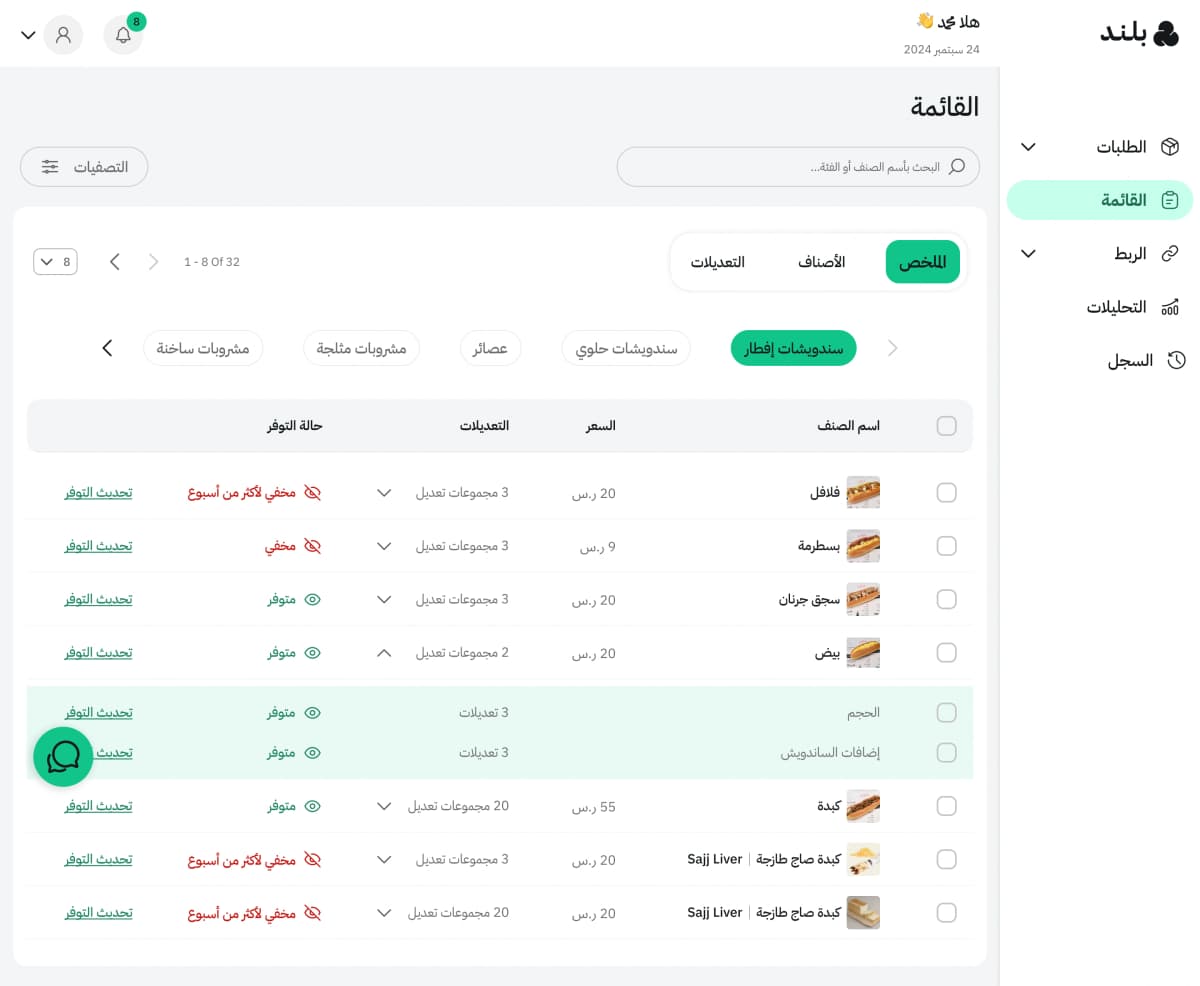
Blend’s order management system allows restaurants and stores to modify product availability — you can hide out-of-stock items for a set duration (hour, day, week, etc.) and then automatically restore them when back in stock.
These changes reflect immediately on your product list and across all connected delivery apps, saving time and effort. Note that you can update availability for a single item, a group of items, or an entire category.
To avoid forgetting any unavailable item, Blend sends you reminder notifications showing the number of unavailable items — e.g., 'You have 3 items unavailable for over 1 week' — helping you keep your menu or product list current.
To modify an item’s availability on the Blend platform, simply:
- Log into the order management dashboard for your store or restaurant.
- Choose the 'Menu' section from the sidebar.
- Search for the item or product you want to update.
- In the last column of the item row, click on 'Update Availability'.
- You can then toggle the product’s status between Available and Unavailable.
In conclusion,Item management is no longer a complicated or time-consuming task — especially with smart systems like Blend that give you full, easy control over every detail of your products. From adjusting prices and availability to organizing items with flexible, clear categories — you can now improve your day-to-day operations and deliver a better customer experience with just a few simple steps.
Don’t wait until your product list gets messy or inventory issues arise! ✨ Try Blend now and see how one tool can completely transform the way you manage your business!