

Food is a true pleasure—don’t ruin it for your customers due to poor management! Fast order management is essential to ensure customer satisfaction and business success.
Get a highly accurate order monitoring system that enables you to:
🟢 Manage your kitchen efficiently.
🟢 Automatically update menus effortlessly!
The "Blend" system offers you a true revolution in restaurant order management. Through this practical guide, we’ll walk you step-by-step to learn how to use the "Blend" system, turning online order management into a smart, integrated experience that gives you complete control and smooth operations.
Step 1: Submit an online request for the order management system
Provide some details about your store, personal information, and the challenges you're facing, along with your contact info. Just follow the steps through the following link: Join Now
1- Define your business type.
2- Choose whether it’s an existing or new store.
3- Identify the problems you're facing in your restaurant or store.
4- Enter your contact information and submit the request.
Step 2: Access the order management system
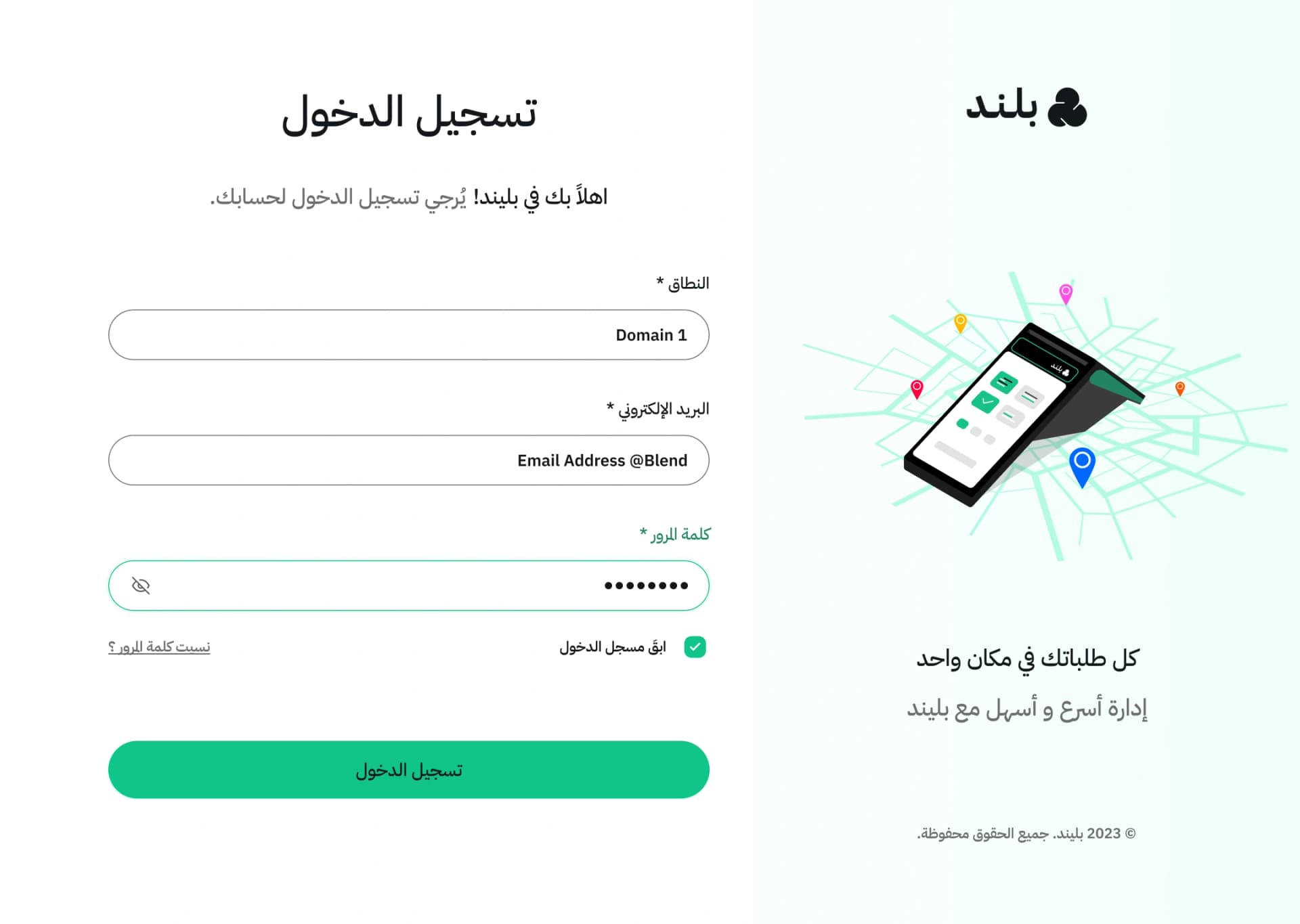
After submitting the request, you will receive a dedicated owner account to access the system. From there, you can create accounts for each order manager in every branch.
The interface shown in the image below will appear, where you can enter your domain, email, and password to log in.
Step 3: Get to know the system interface and how to use it
Initially, the interface below will appear. On the right is a sidebar that allows you to navigate through the services:
1️⃣ Orders
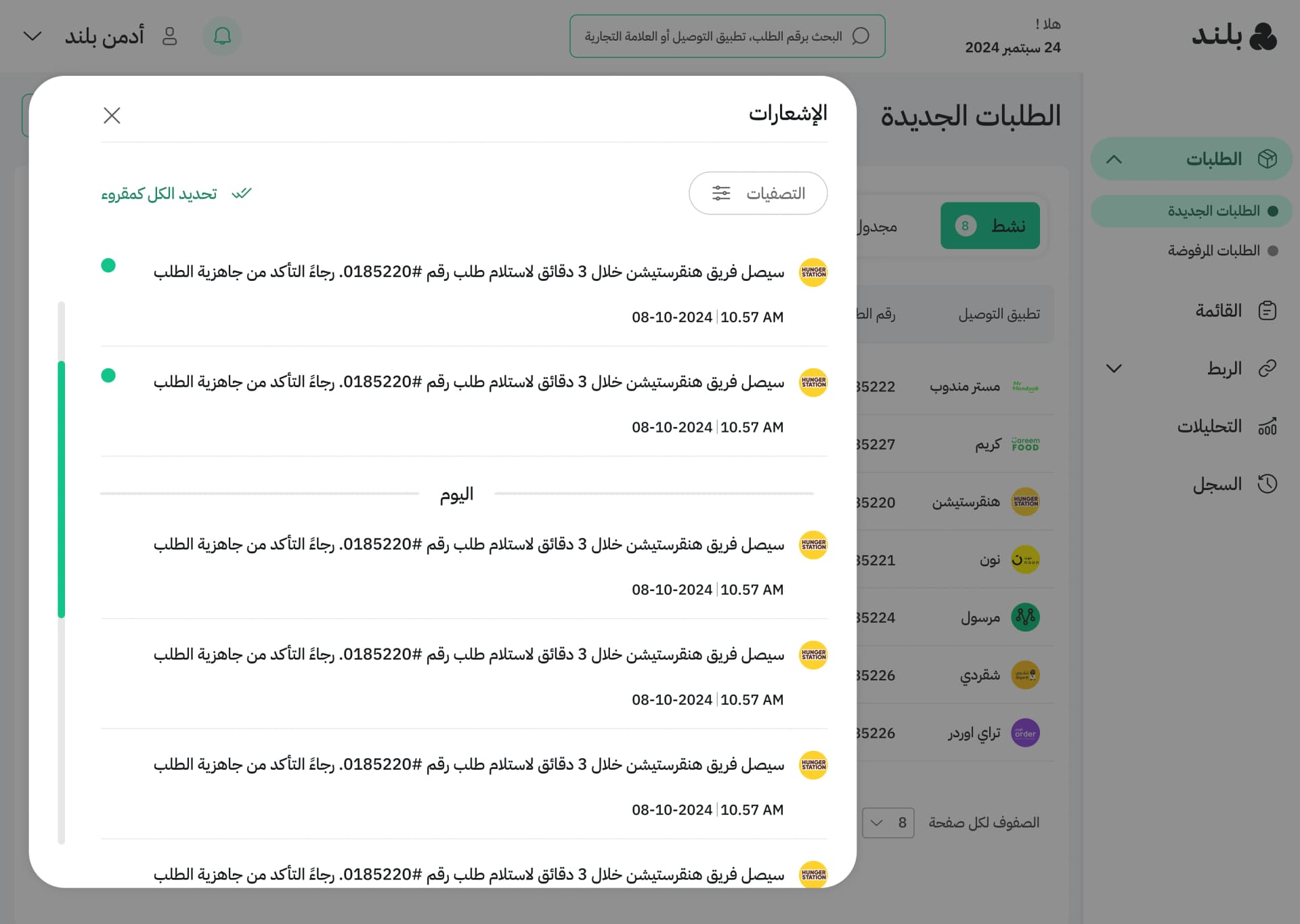
In this section, you’ll find all your restaurant's orders, divided into new and rejected ones. Each order shows all necessary information such as:
- Delivery app (used to place the order)
- Brand name
- Status (pending, in preparation, ready, completed, rejected, canceled)
- Order date
- Ordered items
- Serial number for each order transaction
You’ll also find a filter option if you want to search for specific orders.
Notifications from delivery apps are shown at the bottom icon to alert you about incoming orders.
2️⃣ Menu
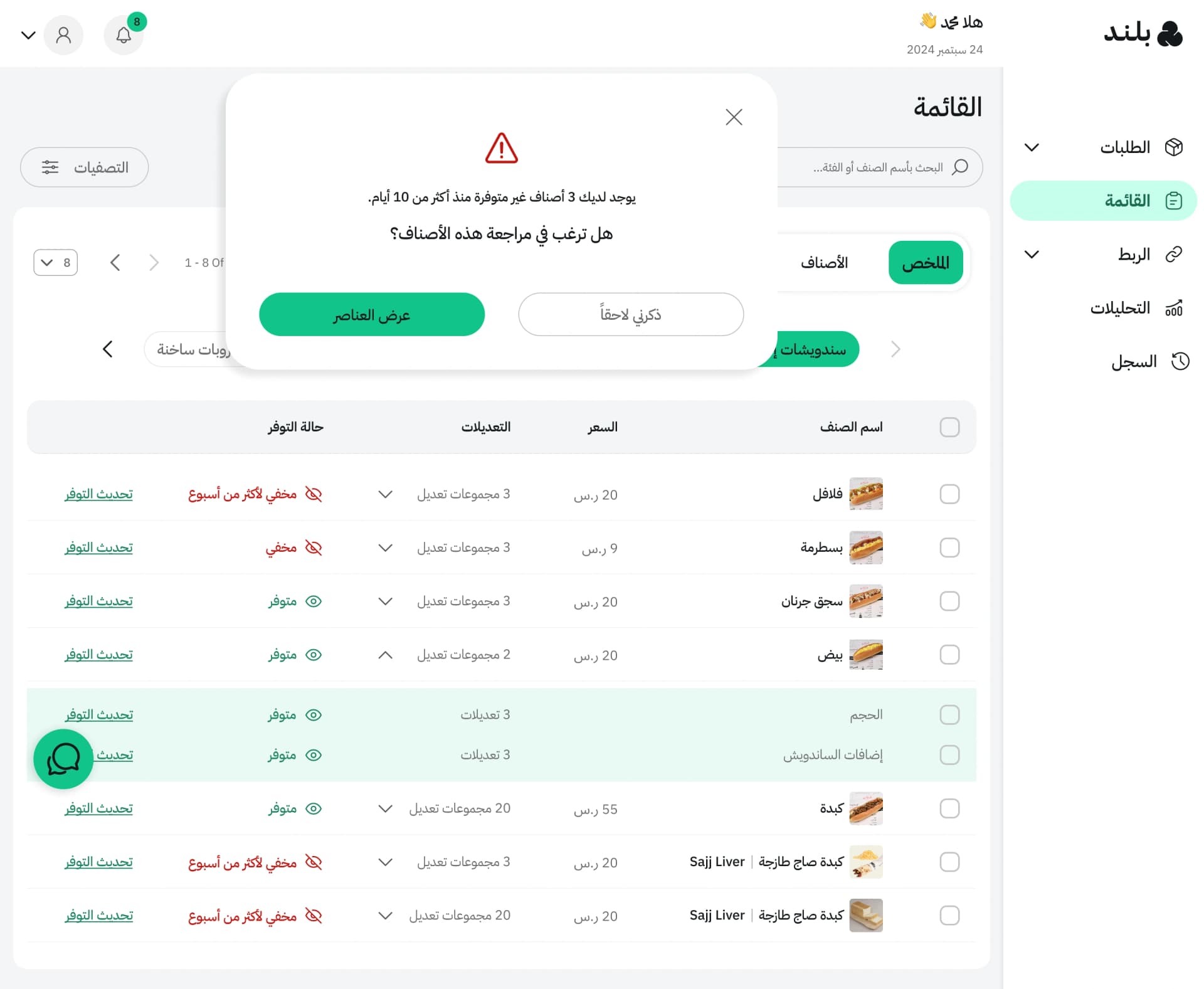
Here you can add all your available items, with price and availability status (hide or show).
One standout feature of Blend’s menu is that it updates automatically. Any item marked as available is pushed to all your connected delivery apps automatically. You can also choose to hide it from some apps and show it in others.
Another great feature is the reminder notifications for items that have been out of stock for a while. It’s a smart system that updates your menu and reminds you about missing items—without requiring you to manually keep inventory.
3️⃣ History
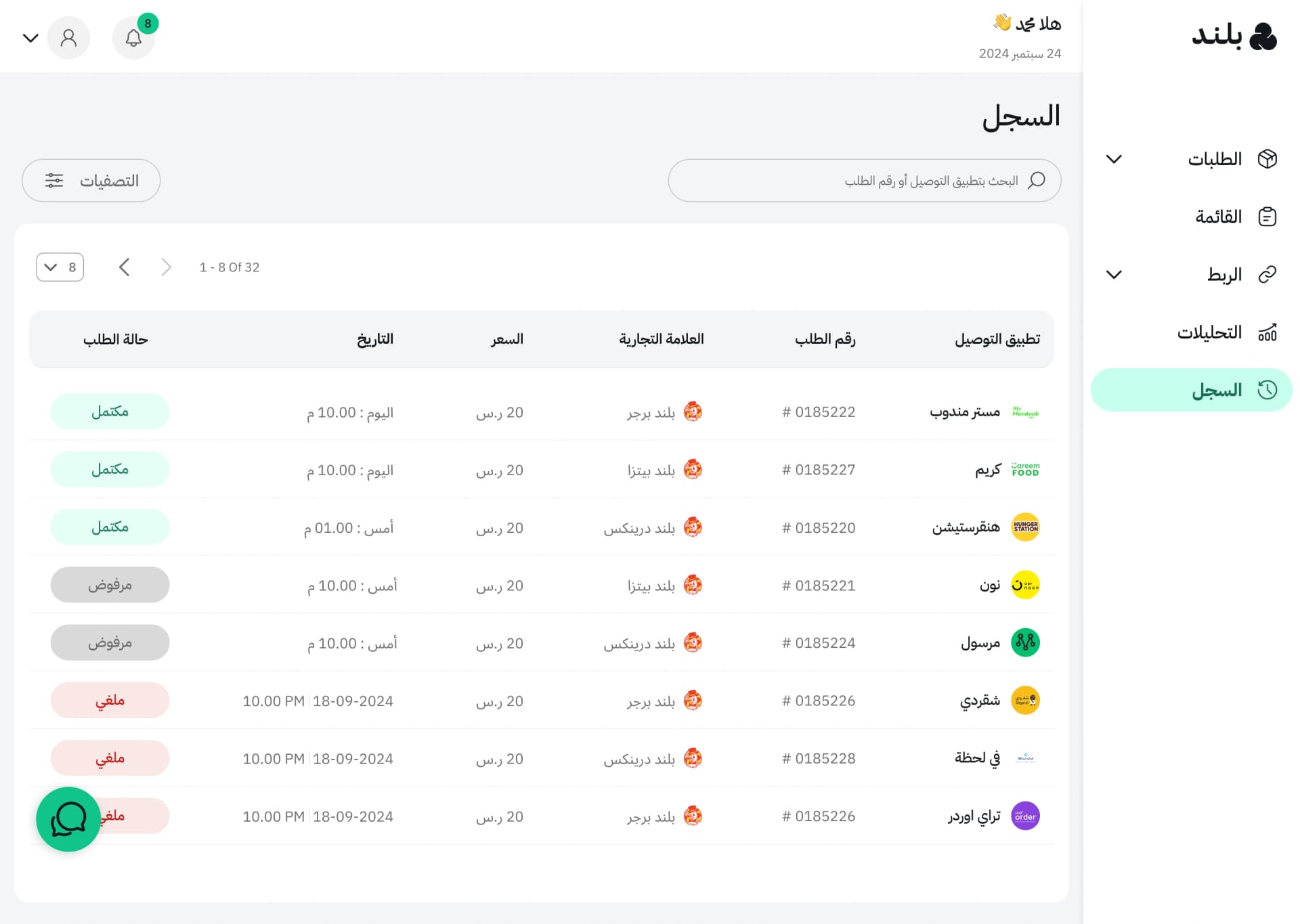
This section is an archive of all your past orders. You can use it to identify incomplete, rejected, or completed orders to help improve operations.
If you want to offer a promotion through a specific delivery app, the filter option lets you view which brand is most or least ordered.
Check the image below to see how the history looks and what data it provides.
4️⃣ Integrations
This refers to integration with delivery apps such as Mrsool, Noon, Careem, and others. What sets Blend apart is that you can choose which apps to integrate with and pause service with any of them anytime.
This section also shows you:
- Number of connected delivery apps
- Number of currently active delivery apps
- Number of disconnected delivery apps
- Number of busy delivery apps
From here, you can manage auto-accept settings and toggle delivery apps on or off, as shown in the image:
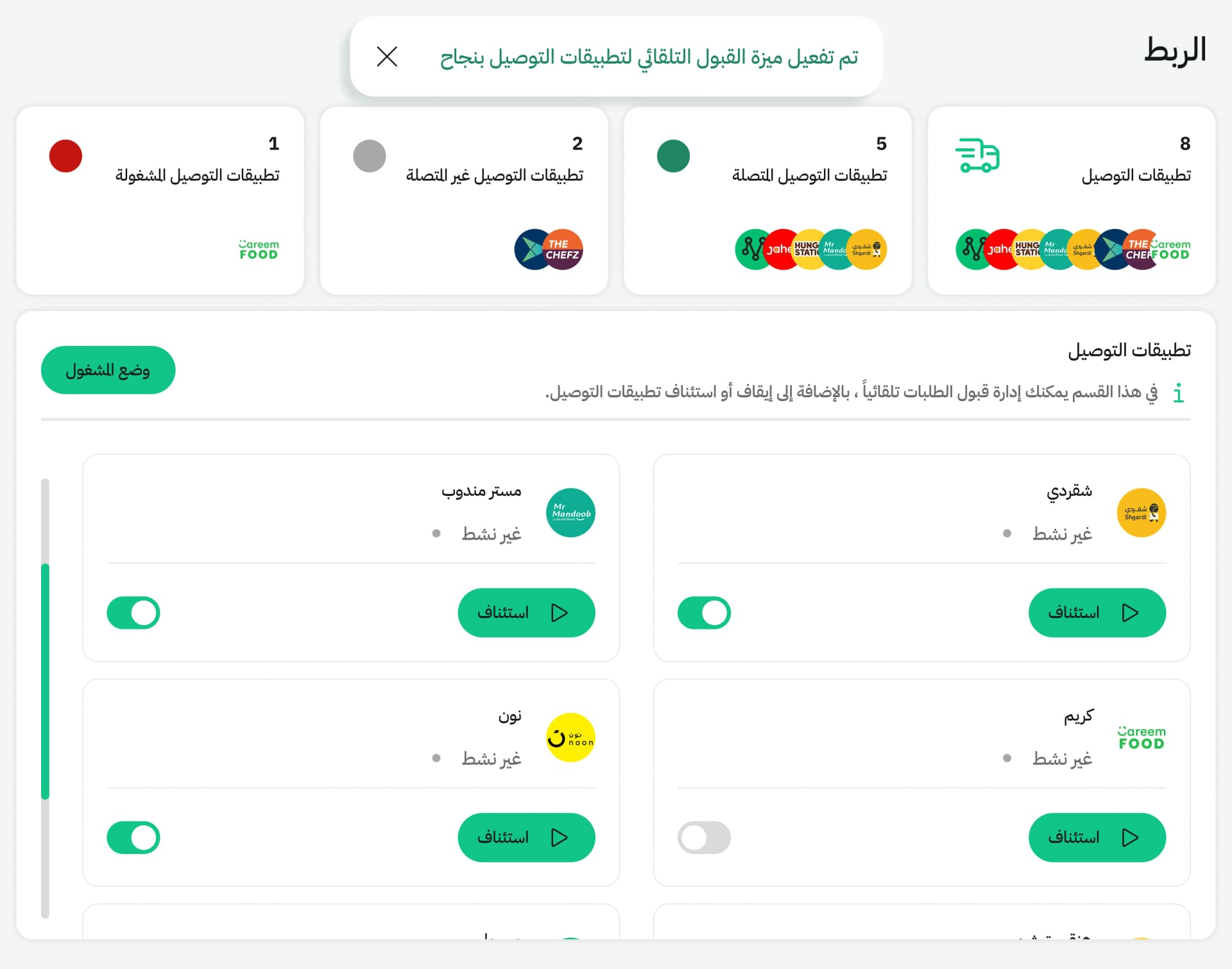
There’s also an activity log that tracks each pause/resume action, its duration, and the reason. This helps owners monitor what’s going on from the order manager side.
5️⃣ Analytics & Reports
This is the most important section where you can see all the detailed insights, data, and performance indicators related to your restaurant’s order management. It helps you understand achievements, identify gaps, and resolve issues to improve your restaurant.
Analytics lets you track:
- Total orders (with comparison to previous periods for increase/decrease)
- Total sales (with comparison)
- Completed orders
- Canceled orders
- Orders vs. Sales comparison in graph form
- Individual reports per delivery app
- Average preparation time
- Number of orders in preparation and ready for delivery
6️⃣ General Settings
Edit your profile details like name, password, email, etc. You can also create accounts for order managers if you’re the store owner. See image below for reference.
In general settings, you can choose your preferred language (Arabic - English), and connect your POS system so orders go directly to your cashier screen.
In conclusion, adopting smart tools like the "Blend" system helps reinforce intelligent order management and gives your restaurant a strong push toward professionalism and growth.
With a single dashboard, you can accomplish a lot:
- Precisely track orders
- Quickly manage incoming requests
- Automatically update food menus
- Access detailed analytics and reports
What truly makes this platform stand out is that it puts you at the center of operations and simplifies restaurant order management anytime and from anywhere.
So start today and give your restaurant a real opportunity to grow through smart and efficient order management.